Mario-1 replaces the hard-coded offset from Mario-0 with a camera. Click the preview and hold W, A, S, or D to move the view around the whole level. The camera stops at the edges of the world.
Cameras in 2D Games
In games that take place in a large world, we can’t show the player everything at once. Squeezing the whole level onto the canvas would make everything too small to see.
A camera shows one window onto the world at a time. As the camera moves, it reveals the parts of the world that were off screen.
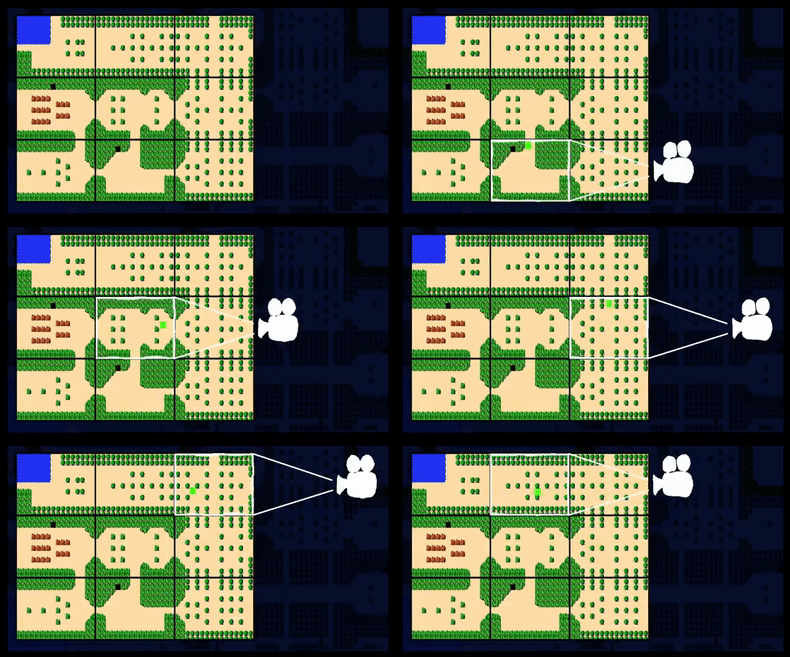
Try it here. Move the window around the larger image with WASD or the arrow keys.
Use the arrow keys or WASD to move the camera.
If you want to dig deeper into camera design, here are some optional videos, from short to long:
- 2D Game Cameras by Luis Zuno (5:52)
- How to Make a Good 2D Camera by Game Maker’s Toolkit (11:37)
- How Cameras in Side-Scrollers Work by Itay Keren (52:34)
The Camera
Camera stores the top-left corner of its view in world pixels as x and y. It starts at the bottom-left of the world, where the ground is, which is the same view Mario-0 hard-coded:
this.x = 0;this.y = worldHeight - viewportHeight;Each frame, update() moves the view while a key is held. Multiplying the speed by dt keeps the movement the same at any frame rate:
const distance = Camera.SPEED * dt;
if (this.input.isKeyHeld(Input.KEYS.W)) {  this.y -= distance;}
Clamping to the World
Without limits, the camera would happily scroll off into the empty void past the level. After moving, update() clamps each coordinate between 0 and the largest value that still keeps the whole view inside the world:
this.x = this.clamp(this.x, this.worldWidth - this.viewportWidth);this.y = this.clamp(this.y, this.worldHeight - this.viewportHeight);For a world 640 pixels wide and a view 256 pixels wide, x can range from 0 to 384. At 384, the right edge of the view is exactly the right edge of the world.
Drawing Through the Camera
The camera never moves the world. Instead, before drawing, PlayState shifts the canvas by the negative of the camera position, and every tile drawn afterwards lands in the right place on screen:
applyTransform(context) { context.save(); context.translate(-Math.round(this.x), -Math.round(this.y));}If the camera is at x = 100, a tile at world x = 100 is drawn at screen x = 0, the left edge of the canvas. Moving the camera right makes the world appear to slide left.
resetTransform() calls context.restore() to undo the shift. PlayState draws everything in the world between the two calls:
this.camera.applyTransform(context);this.tileMap.render(context);// …world-space debug drawing…this.camera.resetTransform(context);Anything drawn after resetTransform() is in screen space and stays put while the camera moves. That’s where a HUD or score would go.