Super Mario Bros. was instrumental in the resurgence of video games in the mid-80s, following the infamous crash shortly after the Atari age of the late 70s. The goal is to navigate a level from a side perspective, where jumping onto enemies defeats them and jumping up into blocks bumps them.
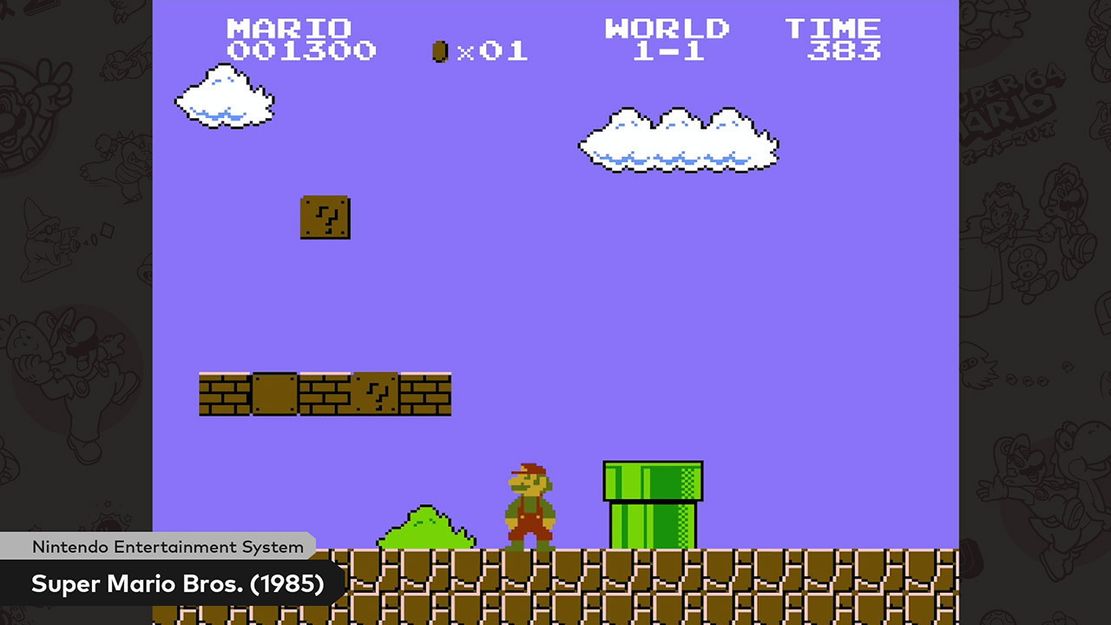
Image from Nintendo
Mario-0 draws a level from a tile map. A tile map is a world built out of small, uniform squares. The level is 40 tiles wide and 20 tiles tall, but the canvas only fits 16 × 14 tiles, so most of the world is off screen. The next lesson adds a camera to explore the rest.
Project Layout
The architecture is the one you know from Match-3. main.js creates a Game, registers states, and starts the loop, and every state receives the shared services through this.game. This project splits src/ into a few more folders because Mario grows larger than Match-3:
config/: level data and tuning values (game.js,map.js, and later the player and camera settings).enums/: stable names for images, sounds, and states.objects/: things that live in the level (empty for now).services/: systems that work on the level as a whole, likeMap.jsandTile.js.states/: game screens. Mario-0 only hasPlayState.
Import Aliases
Instead of long relative paths like ../../lib/State.js, files import from two aliases:
import State from '@lib/State.js';import TileMap from '@src/services/Map.js';@lib/ points at the game-independent framework folder and @src/ points at this game’s code. jsconfig.json tells the editor and type checker about the aliases, and vite.config.js tells the dev server. An import stays the same no matter how deeply the importing file is nested.
Tile Maps
A tile map stores a level as a grid of tile ids. Each id picks a sprite from a tile sheet, a single image cut into 16 × 16 squares. Mario’s tile sheet holds grass tops, dirt, and a few special tiles we’ll use later.

The level data lives in src/config/map.js. It was made in the Tiled map editor and copied out of Tiled’s JSON export:
export const map = { width: 40, height: 20, spawn: { x: 48, y: 264 }, tiles: [0, 0, 0, 0 /* … 800 numbers in total … */],};Tiled numbers its tiles starting at 1 and uses 0 for an empty cell. The tile sheet’s sprites are numbered from 0, so every non-empty value is the sprite index plus one.
Building the Tiles
TileMap cuts the tile sheet into sprites, then turns each number into a Tile (or null for an empty cell):
const sprites = Sprite.loadByGrid(  services.images.get(ImageName.Tiles),  this.tileSize,  this.tileSize);
this.tiles = mapDefinition.tiles.map((tileId) =>  tileId === 0 ? null : new Tile(tileId - 1, sprites));
Sprite.loadByGrid() walks the image left to right, top to bottom, so sprite 0 is the top-left square of the sheet. Subtracting 1 converts Tiled’s id into that index.
A 2D World in a 1D Array
The map is conceptually two-dimensional, but tiles is one long array. Row 0 first, then row 1, and so on. To find the tile at column col and row row, use the calculation:
getTileAt(col, row) { return this.isInBounds(col, row) ? this.tiles[col + row * this.width] : null;}For example, in a 40-wide map, the tile at column 3, row 2 is at index 3 + 2 × 40 = 83.
Rendering
Tile.render() converts its column and row to pixels by multiplying by the tile size, and TileMap.render() visits every cell:
for (let y = 0; y < this.height; y++) { for (let x = 0; x < this.width; x++) { this.getTileAt(x, y)?.render(context, x, y); }}The ?. (optional chaining) skips empty cells, since getTileAt() returns null for them.
Showing the Ground
The ground is at the bottom of the level, but the canvas shows the world from its top-left corner. Drawn as-is, you would only see sky. PlayState shifts the drawing up by the difference between the world height and the canvas height:
const worldHeight = this.tileMap.height * this.tileMap.tileSize;
context.save();context.translate(0, -(worldHeight - this.game.canvas.height));this.tileMap.render(context);context.restore();
translate() moves where everything after it is drawn. save() and restore() undo the shift afterwards, so nothing else drawn later is affected. Hard-coding this offset only works for one fixed view. The camera in the next lesson replaces it with a view that can move.
Debug Overlays
Open the ⚙️ Tuning tab at the top of the preview. It holds a control panel built by src/services/ControlPanel.js from the definitions in src/config/DebugSettings.js. For now there is one checkbox, Map Grid Lines, which outlines every tile so you can see exactly where each one starts and ends.